Now that you have your network setup properly and a copy of Warp Pipe successfully installed, it is time to get acquainted to the Warp Pipe interface. If you haven't gone through the installation process or are unsure where your installed copy of Warp Pipe is located on your computer, please visit the
Downloading and Installing section of this tutorial.
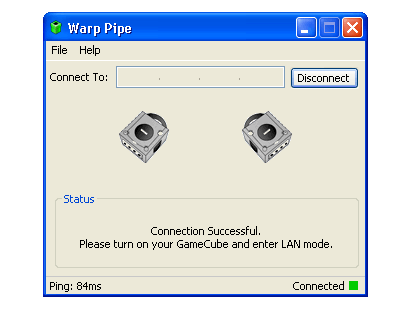
Below is an image of the Warp Pipe application with corresponding citations to help you better understand all components and options contained in the application. Even though you may be running a different operating system than Windows (as shown below), the Warp Pipe user interface is standard across all platforms making all support documentation relevant.
IP Entry Field
This is the area where you will input the IP address of the person you wish to connect to.
Listen / Connect / Disconnect Button
This button will change state based on your actions. For instance, if you want someone to connect to you, it will allow you to listen for connections. If you wish to enter an IP address, it will connect you to that IP. If you are already connected, it will allow you to disconnect from your current connection.
Graphical GameCube Indicator
This area will indicate which GameCubes have been found on the network. The left graphic represents the GameCube on the local network (yours) and the right graphic represents the GameCube on the remote network (your opponent's).
Status Area
This area will update your connection process when connecting to an opponent. This area will also display any errors you might incur while running Warp Pipe.
Ping
Upon a successful connection, Warp Pipe will display the ping (in milliseconds) between you and your opponent. For more information about ping and how it affects game speed, please read our Support FAQ.
Connection Status Light
Upon a successful TCP and UDP connection, the connection status light will turn green and you will have a status of "Connected". If you are stuck on a status of "Initializing Connection..." and the light is still red, that means either you or your opponent have problems with your UDP connection. For more information about ensuring proper TCP and UDP connections, please consult our
Routers, Firewalls, and Port Forwarding support section.