
|
|


|
|||||||||||||||
|
|

|

|

|
|

|
|

|
|

|
|

|
|

|
|
|
|
|
|||||||||||||||
|
|||||||||||||||||||||||||||||||||||||||||||||||||
|
|
|
||||||||||||||||||||||||||||||||||||||||||||||||
|
Support: Routers, Firewalls, and Port Forwarding
Configuring routers, firewalls, and getting a handle on port forwarding remains the largest challenge for many of our users. To counter this problem, we have made available a special section fully dedicated to helping you through these problems. If, after reading this document, you have any remaining problems or suggestions for making this section better, please let us know by posting on the Help & Support Forum. Why am I Here?
Chances are you have been following our step-by-step tutorial and either encountered a problem or wanted to read more about how to configure your firewall and/or router. You may have also been referred to this page by someone in our Support Forum. In either case, please continue reading so we can help you clearly identify and solve the problem you may be experiencing. Identify Your Error
There are two main symptoms of a connection problem due to an improperly configured firewall or router. Each symptom is directly related to a network protocol, either TCP or UDP. Warp Pipe uses the TCP protocol to connect to other PCs running Warp Pipe and uses the UDP protocol to send game data, once a successful TCP connection has taken place.
Therefore, if someone is unable to make a connection from their Warp Pipe client to yours, your router and/or firewall are blocking TCP protocol on port 4000. Similarly, if your Warp Pipe client is stuck in "Initializing Connection" status and indicates "UDP Failure", you and/or your opponent’s router and/or firewall is blocking the UDP port which varies depending upon "Auto Port Forwarding" status, which will be explained below. Auto Port Forwarding
Auto Port Forwarding is a new feature in Warp Pipe 0.3.5 which configures the UDP game data port automatically so game data can be sent and received without having to go through the trouble of properly configuring our router and/or firewall. Auto port forwarding will not let others connect to you without first properly configuring your router and/or firewall, as this is a TCP connection.
In some cases, due to the router and/or firewall on your network, Auto Port Forwarding will not be successful in configuring your UDP game traffic. If this is the case you must properly configure your router and/or firewall to allow access to UDP port 4000 on the PC or Mac running Warp Pipe and uncheck the "Auto Port Forwarding" option before operating Warp Pipe. Firewalls
Firewalls and proxy servers are designed to block your Internet connection in order to minimize the chances that your computer will be accessed by unwanted visitors. They also have the unfortunate side-effect of disabling many of the things you might want to do online, like play games. Therefore, if you are using a firewall or proxy, Warp Pipe may not function until your firewall or proxy is properly configured.
Connecting to different places online requires access through "ports" in your PC or Mac’s Internet connection, and firewalls and proxies will close certain ports for your protection. This is not always necessary, but you as the firewall/proxy owner are the only one who can open those ports. We can't do it for you - but we can give you some tips on how to configure your firewall / proxy to allow Warp Pipe to work properly. What is a firewall or proxy?
Firewalls and proxies are software programs or pieces of hardware designed to protect your computer and/or network from Internet intruders. Some of these are:
University Internet Connections
Universities usually protect their networks with firewalls. In most cases these cannot be opened by you the user. You'll have to consult a technician at your University to see if a workaround is possible. In reality, getting Warp Pipe to work on certain restrictive networks may even be a little harder than opening these ports depending on any packet shaping policies the network administrator has put into place. For reference when consulting with University network administrators Warp Pipe needs access to port 4000, both UDP and TCP protocols. Disabling Firewalls Will Not Work
Unfortunately, in most cases, firewalls/proxies cannot simply be disabled in order to allow you to use Warp Pipe. Disabling the firewall / proxy will not open the necessary ports. It will simply shut down the firewall/proxy and leave the ports closed. Also, many factors may conflict with your firewall: Internet Connection Sharing, the use of more than one firewall, or your operating system may all cause conflicts that keep you from enjoying Warp Pipe. To work around these issues, you will need to consult the documentation of your firewall/proxy. Configuring Specific Firewalls
We do not recommend shutting down your firewall. Shutting down will open up all ports, not just the port required to run Warp Pipe, and should only be used as a last resort. Instead, you need to configure it to allow access to Warp Pipe. This is usually called "giving permission," and can be accomplished quickly by following these steps:
Routers
A router is a device that splits a broadband connection and forwards data packets from the internet to a group of computers or other devices that use your Internet connection, like your GameCube. Since a router allows more than one device to share one IP Address, it uses something called Network Address Translation (NAT) to split the connection and forward incoming data ports to specific devices connected to the router. Since Warp Pipe requires data on a specific port to be directed to the PC or Mac running Warp Pipe, you must configure your router accordingly. The diagram below shows how a router takes a broadband Internet connection using one IP address and splits it using Network Address Translation (NAT) to create a Local Area Network (LAN). 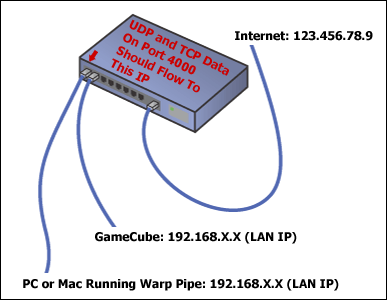 Configuring Your Router
Since incoming game data needs to be routed to the PC or Mac running Warp Pipe, you must properly configure your router to forward all UDP and TCP data packets on port 4000 to the IP address of the PC or Mac running Warp Pipe.
To find the IP address of the computer on your network running Warp Pipe, perform the following steps (platform specific).
|
|||||||||||||||||||||||||||||||||||||||||||||||||||||||||||||||||||||||||||||||||||||||||||||||||||||||||||||||||||||||||||||||||||||||||||||||||||||||||
|
|
Privacy Policy Copyright © Warp Pipe. All rights reserved. |

