Getting Started: Setting Up Your Network
Now that you have a basic understanding of what Warp Pipe is, setting up your network to accommodate online GameCube game play is the next step in bringing your GameCube online with Warp Pipe.
Warp Pipe works with many different types of home networks. Warp Pipe takes care of the IP assignment if a router is not on the network, enabling you to follow Nintendo's recommended network setup guidelines (Hub or Switch) and add your PC or Mac running Warp Pipe software. This allows you to avoid purchasing extra hardware, having to learn about configuring a router, or worrying about extra IPs or broadband sharing devices (unless you are already using one). In general, you just need the computer to be on the same network as the GameCube.
Identify the supported Warp Pipe configuration that most resembles your home network by looking at the network diagrams below. Pay attention to the legend in each network diagram. It will overview the different kind of cables required designated by color. For a better understanding of each network diagram, read the corresponding description and any support links that may be available for reference.
Please note: "Broadband Source" is a generic term for several different methods of connecting to the Internet. For most people this will refer to their ADSL orCable modem; however "Broadband Source" also refers to data jacks, which are often found in dorm rooms or office networks.
|
Hub / Switch Setup
|
|
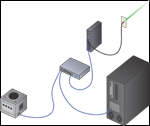
This is a common configuration if you have a single computer and want to put your GameCube on the same network. It is also based on Nintendo's recommended LAN setup for playing LAN-enabled GameCube games. If your current Internet connection goes directly from your Broadband Source into your network card, this will be the easiest configuration to set up. Just plug the Ethernet cable from your Broadband Source into the uplink port on the hub, and plug your computer and GameCube into the hub. No networking changes are needed. Four or five port hubs can be purchased for $25-$50.
|
|
Two Network Cards
|
|
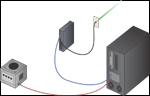
If you do not want to use a hub, you can choose to use two network cards in the same computer. One network card will connect to your Broadband Source. The second network card will need to be connected directly to the GameCube via a crossover cable, not a standard Ethernet cable. For more information on crossover cables, how they are different from standard Ethernet cables and how to attain one, please visit the Network Setup FAQ. |
|
DSL / Cable Router
|

|
If you are already sharing your network connection with multiple computers, or plan to in the future, you may need a DSL / Cable router if you do not have enough IP addresses from your ISP for each computer. All you need to do is plug your GameCube into the router which is also connected to your PC or Mac and GameCube will be on the same network as your computer. You will, however, need to configure your router. For more details please check the Router and Firewall Support section prior to running Warp Pipe for the first time. |
|
Router + Hub / Switch
|
|
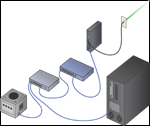
If your Cable/DSL Router does not have enough ports on it, you may need to plug a hub or switch into it, and then plug your computer and GameCube into the hub. When connecting the router to the hub, you should use the uplink port on one of the devices but not both. You will, however, need to configure your router. For more details please check the Router and Firewall Support section prior to running Warp Pipe for the first time. |
|
USB Cable / DSL Modem
|
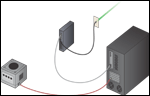
|
If you have a cable or DSL modem that connects directly to your computer via USB, you will need a network card to connect to your GameCube. The network card will need to be connected directly to the GameCube via a crossover cable, not a standard Ethernet cable. For more information on crossover cables, how they are different from standard Ethernet cables and how to attain one, please visit the Network Setup FAQ. |
|
Wireless DSL / Cable Router
|
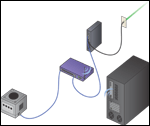
|
If you are already sharing your network connection with multiple computers, or you do not have enough IP addresses from your ISP for each computer, and your PC or Mac is far away from your GameCube, you may need a Wireless DSL / Cable router. All you need to do is plug your GameCube into the router which is also transmitting a wireless signal to your PC or Mac and it will be on the same network as your computer. You will, however, need to configure your router. For more details please check the Router and Firewall Support section prior to running Warp Pipe for the first time. |
|
Wireless Bridge
|
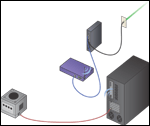
|
If you have a wireless network at home and connecting your GameCube a network device is not convenient, you can use a computer (ideally a laptop) to bridge the connection to the Internet. To do this, you must have a PC or Mac computer (which will act as the bridge) connected to the wireless network; your GameCube will also be connected to this computer, via a crossover cable, not a standard Ethernet cable. You will, however, need to configure your wireless router. For more details please check the Router and Firewall Support section prior to running Warp Pipe for the first time. For more information on crossover cables, how they are different from standard Ethernet cables and how to attain one, please visit the Network Setup FAQ.
|
If you have detailed questions about setting up your GameCube on your network, or questions about home networking in general; please visit our Network Setup FAQ.
|